AIM Training
StudentAccessible Information Management (AIM) for Students
The department of Access Services at Saint Mary’s University of Minnesota now uses Accessible Information Management (AIM), a secure web-based portal that allows students to request and coordinate their accommodations with faculty through an online AIM Student Portal. AIM is a comprehensive accommodation and case management software that’s designed for university disability resource offices.
Guide for Using the AIM Student Portal
What Students Can Do In The AIM Student Portal
How To Toggle Between Light Mode and Dark Mode
Submitting a New Student Accommodations Request Application
How to View Approved Accommodations
Requesting Faculty Notification Letters (formerly called Notice of Accommodation Letters)
Uploading Additional Documentation
Completing Required Agreement Forms Applicable to Your Accommodations
Submitting Requests for Alternative Format Textbooks
Submitting Requests for Alternative Format Course Materials
Overview of Communication Access
Using Equipment Access Module to Track Checked-Out Technology and Equipment
Using the Alternative Testing Module (Winona Students Only)
Guide for Using the AIM Alternative Testing Module for Students (Winona Students Only)
Explanation of the Testing Agreement Form
Students can use the AIM Student Portal to:
- Complete the New Student Accommodations Request Form.
- View approved, modify, and request accommodations for individual courses. Each semester students will request that their accommodations be shared with their faculty through the AIM Student Portal. A Faculty Notification Letter (formerly called Notice of Accommodation) will then be shared with their instructors.
- Faculty Notification Letters are sent to professors teaching courses that the student is enrolled in. Students can also save their Faculty Notification Letter as a PDF to share with any other faculty such as department chairs, program directors, advisors, etc.
- Upload new documentation. Students can upload documentation securely within AIM for an Access Services Specialist to view.
- Schedule exams to be taken in the Access Services Testing Center in Winona (for Winona students receiving testing accommodations only).
- Request alternate format textbooks through the Alternate Formats module. Available formats include:
- Accessible PDFs
- Braille
- Hard copy or PDF of E-Book
- Large print
- Microsoft Word (DOC)
- Screen reader accessible documents
- Submit requests for ASL Interpreting Services, CART Services and Media Captioning.
- Schedule an appointment with an Access Services Specialist.
- Track assistive technology and accessible equipment you have checked out through Access Services.
How to Toggle Between Light Mode and Dark Mode
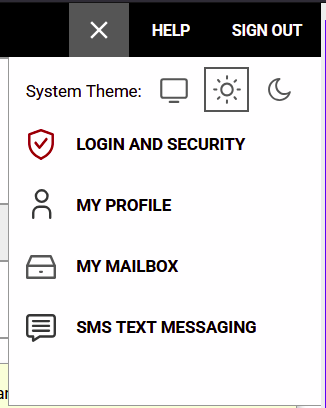
You can view AIM in Light Mode, where the background is white and the text is dark, or in Dark Mode, where the background is dark and the text is white.
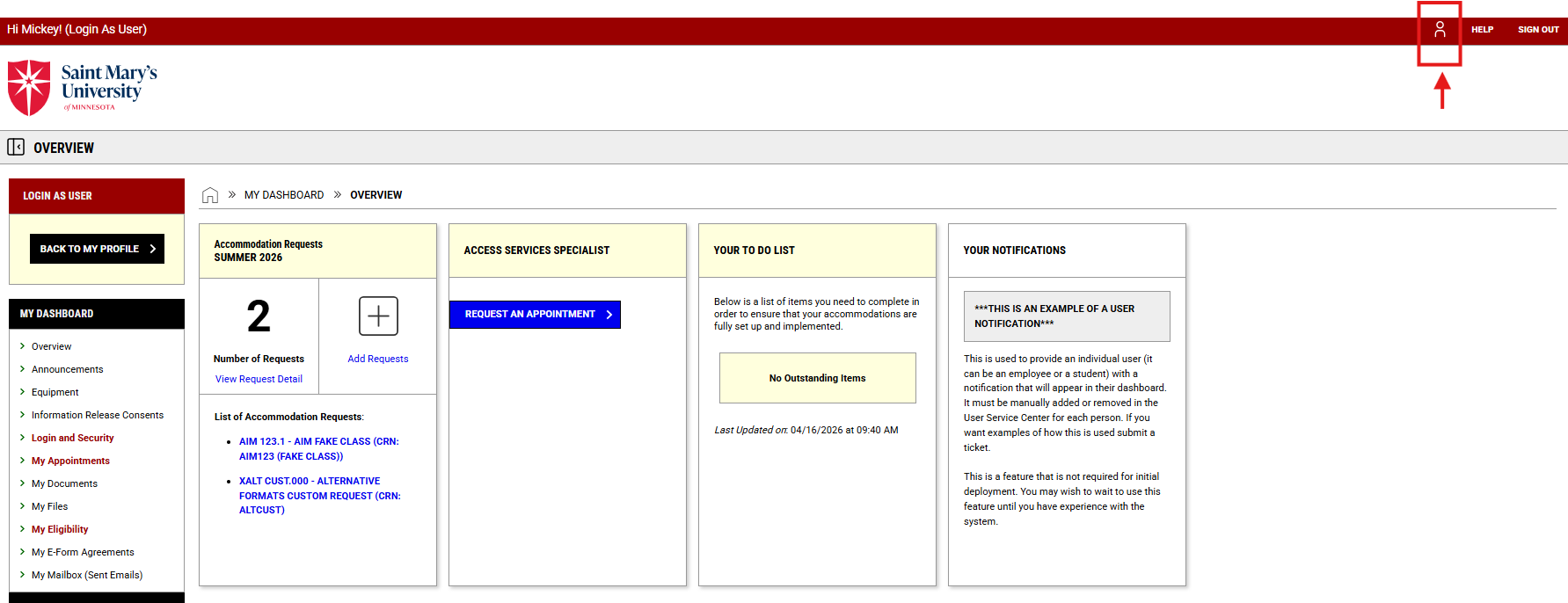
To toggle between Light Mode and Dark Mode, click the small icon of a person in the top right hand corner so that “System Theme” displays. You can then select the the icon of the sun for ‘Light Mode’ or of the moon for ‘Dark Mode‘.
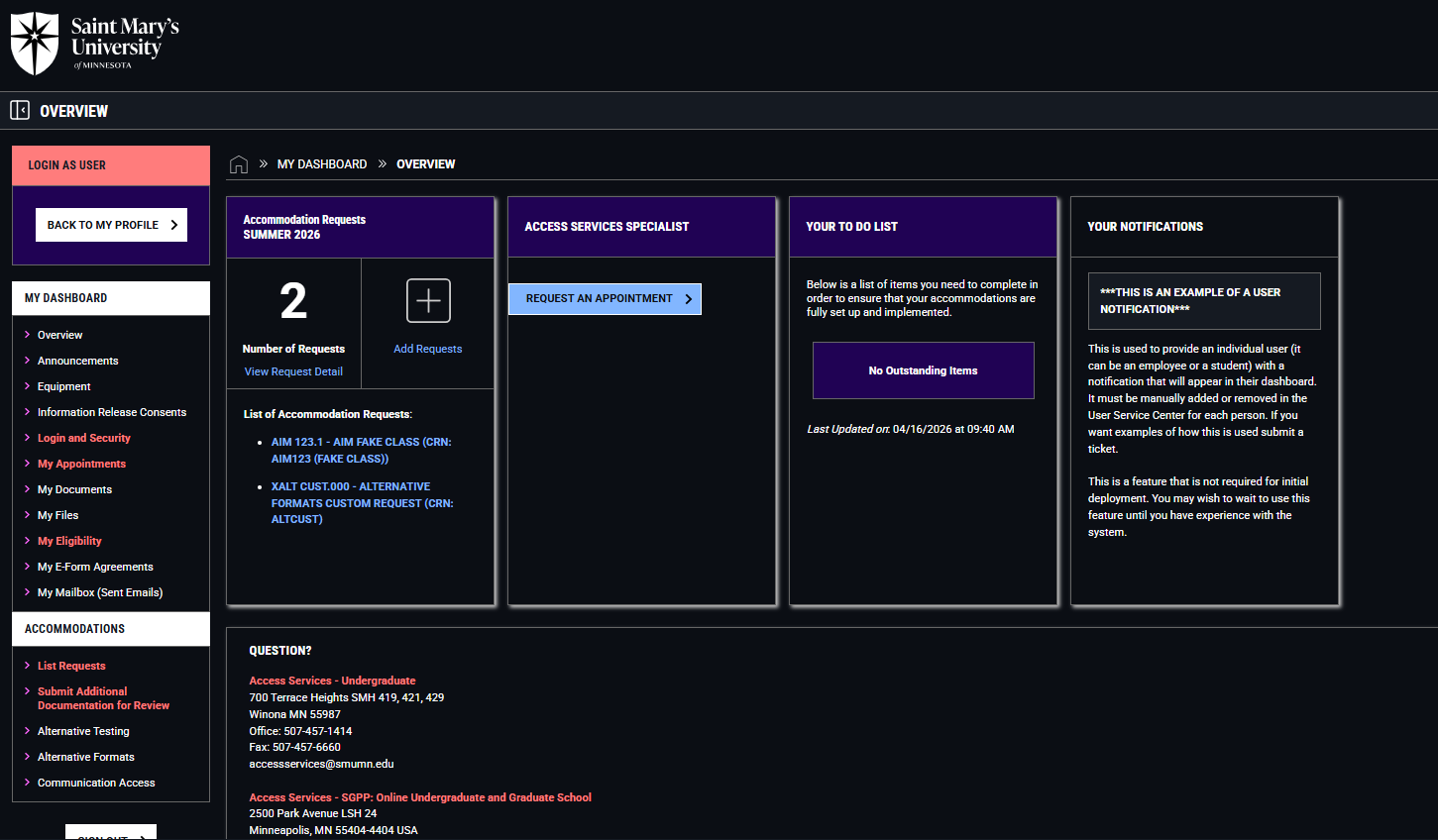
Below is what the AIM Student Portal looks like when in Dark Mode.
Submitting a New Student Accommodations Request Application
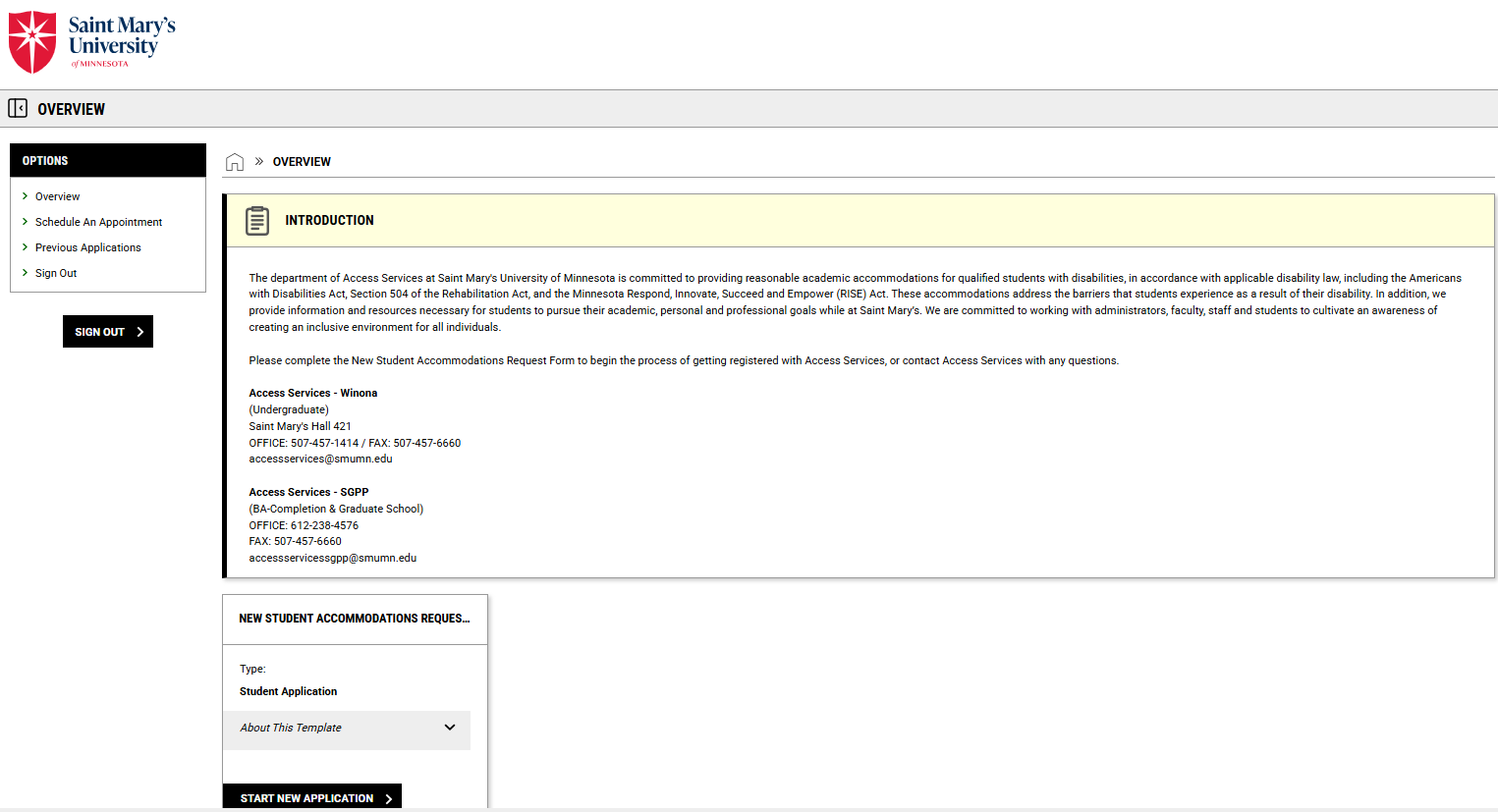
Students who wish to register with Access Services to receive accommodations must complete the New Student Accommodations Request Application in AIM.
How to View Approved Accommodations
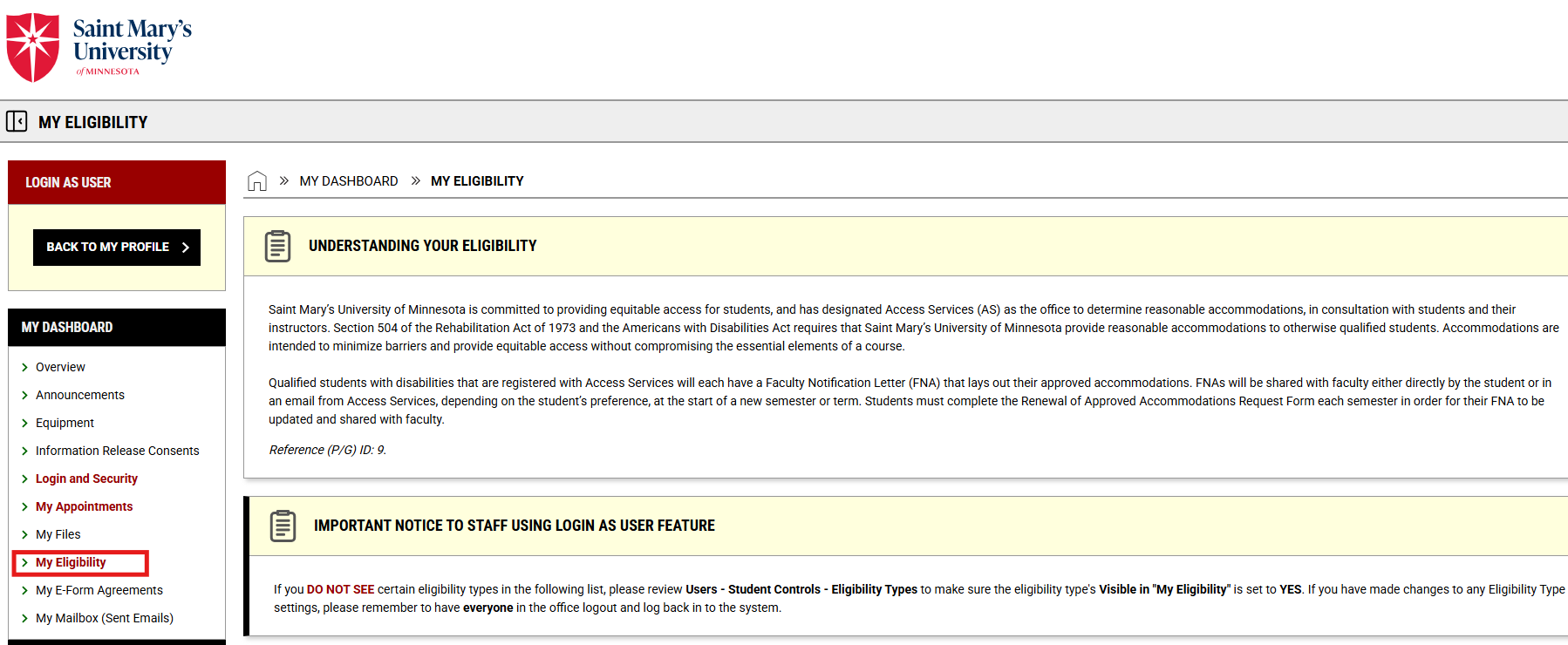
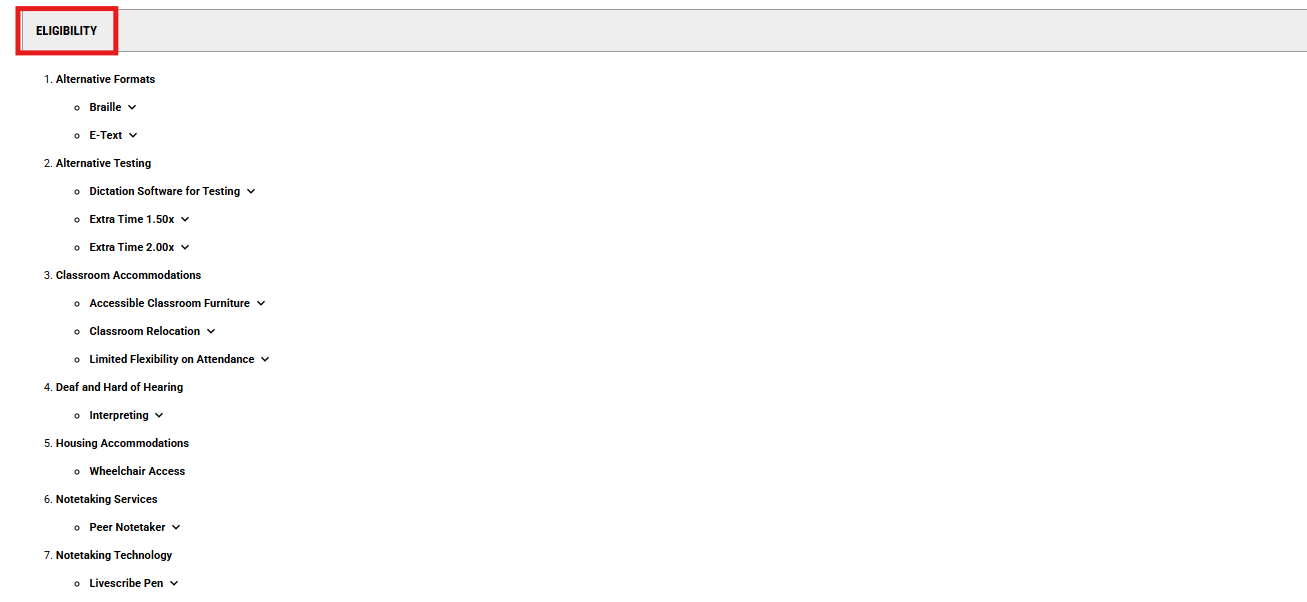
Once a student has completed their New Student Intake Meeting with an Access Services Specialist, their approved accommodations will be available to view in the AIM Student Portal. On the AIM Dashboard on the left menu under “My Accommodations”, select “My Eligibility” to see the complete list of currently approved accommodations.
Requesting Faculty Notification Letters (formerly called Notice of Accommodation Letters)
Each semester, students will need to initiate the process to send Faculty Notification Letters (formerly called Notice of Accommodation Letters) to their course instructors within the AIM Student Portal. The student will select which classes to send letters to; verify which accommodations they are requesting; and then submit their accommodation requests.
Emails will be sent out through AIM directly to the instructor of record for the course notifying them that the student has shared their Faculty Notification Letter with them. The email will be addressed from Access Services and the student will receive a copy of each email when the notifications are sent. Faculty will then log in to AIM to view any Faculty Notification Letters shared with them.
Once Faculty Notification Letters have been sent to instructors, students should set-up a meeting with their instructors (and/or other key staff members) so they can discuss how the accommodations will be implemented in that specific course and to talk through any specific questions or arrangements.
Steps for Requesting Faculty Notification Letters in AIM
Each semester, you will need to request your accommodations be sent to your faculty through the AIM Student Portal. Once you complete your request, your accommodations are sent to any instructors that you shared your accommodations with in a Faculty Notification Letter (formerly called Notice of Accommodation).
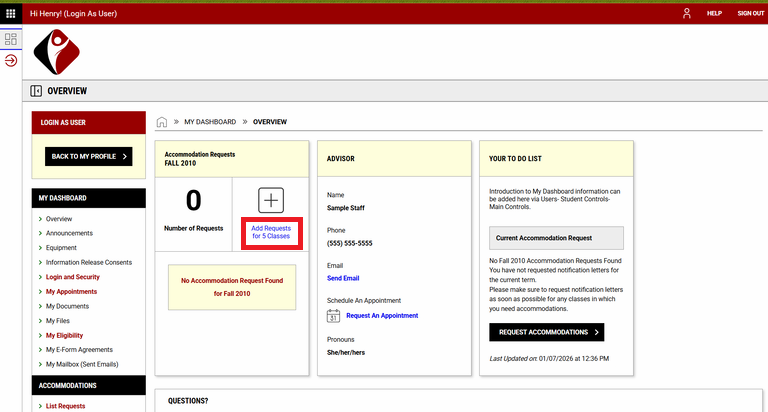
You can find “Accommodation Requests” under “My Dashboard” in the “Overview” section.
-
- In the “Accommodation Requests” section for the current term, select Add Request for # Class
- The text will specify how many courses you have not requested accommodations for
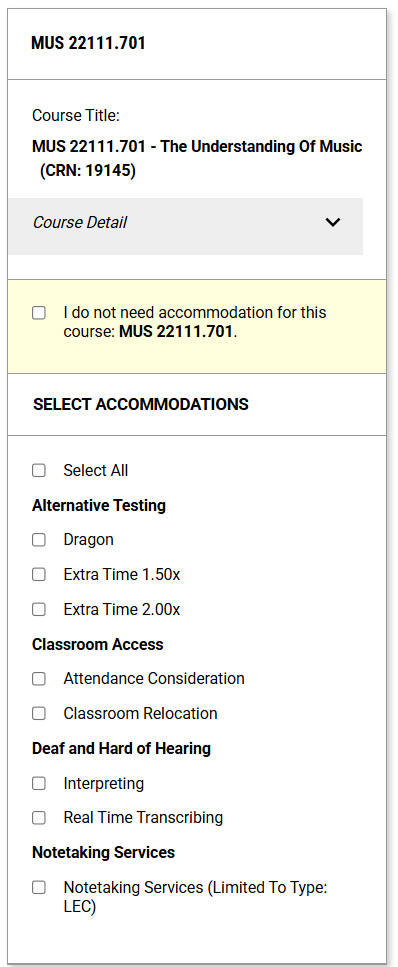
- Select the checkbox next to the courses you would like to request accommodations for.
- Select the eligibilities (accommodations) you want to request for the class.
- Eligibilities (accommodations) are separated by Group.
- “Select All” checks all boxes for the student.
- “I Do Not Need Accommodations for This Course” will uncheck any items that may have been previously checked and disable the checkboxes below.
- Repeat for each class available.
- Click Submit Request. Once you submit, an email notification to faculty that a Faculty Notification Letter has been shared with them will be scheduled or sent.
- In the “Accommodation Requests” section for the current term, select Add Request for # Class
- If you request your accommodations in advance of a new semester, the Faculty Notification Letter information will be scheduled to be emailed to faculty 28 days prior to the start of the semester. If a student requests their accommodations be shared anytime after 28 days before a new semester, the Faculty Notification Letter information will be emailed immediately to the faculty.
- Students are emailed a copy of the email notifications sent to faculty regarding Faculty Notification Letters. You can view all accommodation letters sent by AIM under “My Dashboard” in the “My Mailbox (Sent Emails)” section.
Modifying Accommodations
- To request new accommodations not listed under “My Eligibility”, please reach out to your Access Services Specialist.
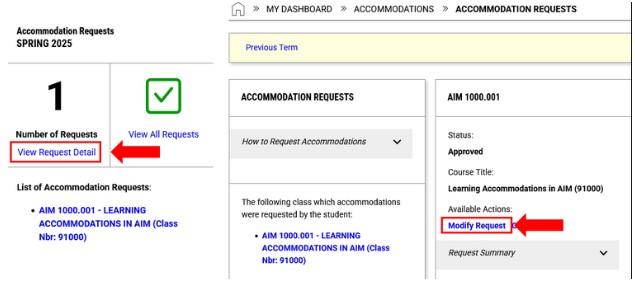
- To update or resend a letter with your approved accommodations, go to “My Accommodation Requests” and select “View Request Detail” and then “Modify Request” for the course you need to update.
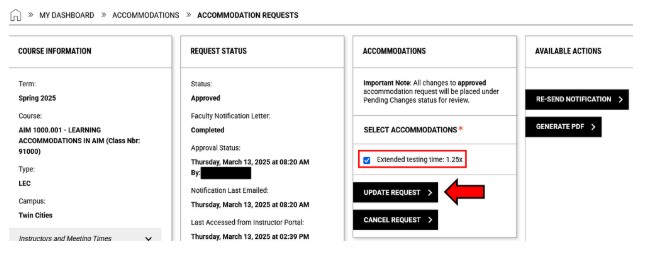
- Select/deselect your accommodations and select “Update Request”. If you need to make changes for multiple courses, you must do this for each course individually.
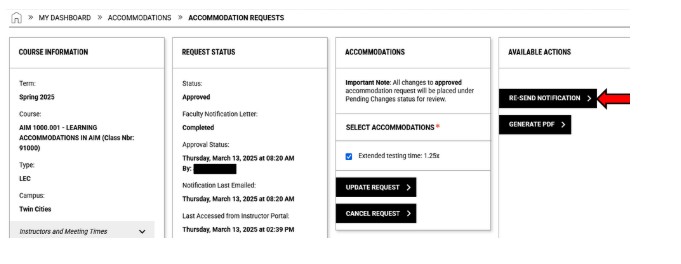
- To resend a letter, select “Re-send notification’. Re-sending the notification will resend the letter without the changes. This feature will not commonly be used. Instances of use include if a faculty member cannot find the original letter.
Uploading Additional Documentation
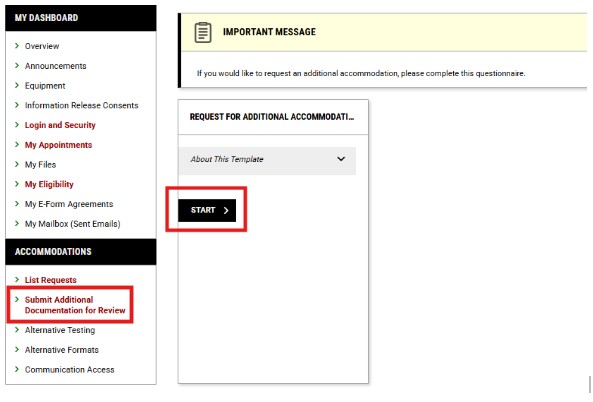
You can submit additional documentation in AIM under “Accommodations” in the “Submit Additional Documentation for Review” section. Select Start in the “Additional Documentation” section and fill out the form. This form can also be used to request additional accommodations.
Completing Required Agreement Forms Applicable to Your Accommodations
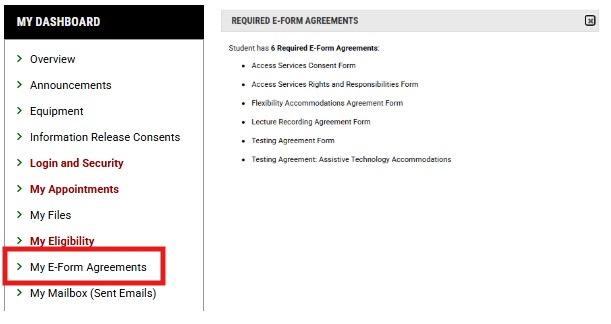
Under “My Dashboard”, you will find “E-Form Agreements” that need to be signed or were previously signed. You will also see a pop-up on the dashboard with a reminder for any outstanding E-Form Agreements. Some E-Form Agreements only need to be signed upon registering with the office of Access Services, and some will need to be signed once per semester based on the accommodations you are approved for.
Submitting Requests for Alternative Format Textbooks
After selecting “Alternative Formats” and submitting the request for the accommodation, you’ll be able to submit specific textbook requests.
- Under the “Accommodations” heading in the left side menu (beneath “My Dashboard”), click on “Alternative Formats”.
- In the main section of the page, click on “Alternative Formats Preference”, which will drop down a box to set your format preference. Select your preferred format from the dropdown menu and then click “Update Preference”.
- Click “Review Requests or Add Books” (under the “My Requests” tile).
- If your instructor has posted the book information to the bookstore, books will be listed under the “Request Alternative Formats” section. Click “Select” for each of the books you would like to request.
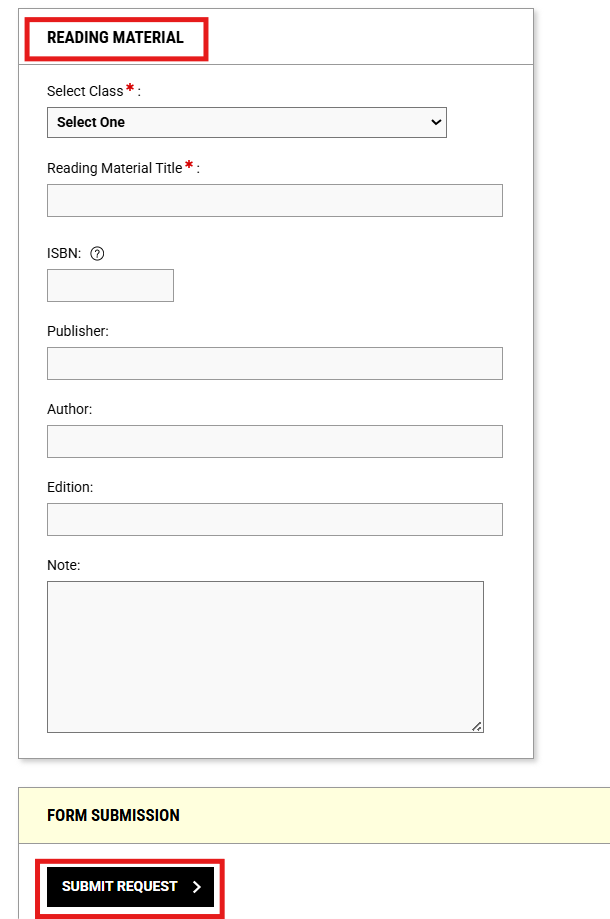
- If you do not see your book listed, but have all the book information, please submit a custom request below under the “Reading Material” section. Please enter as much information as possible (Title, Author, ISBN, Edition), then click ‘Submit Request’.
For each textbook request, we will need you to upload proof of purchase or rental. Please follow the steps below to do so.
Accepted forms of Proof of Purchase:
- Upload a copy of your receipt.
- Upload a screenshot of your order confirmation from the vendor in which you purchased your textbook.
Uploading Proof of Purchase:
- Under Alternative Formats, in the tile titled “Receipts Needed”, click on “Upload Receipt” (OR click on the “Upload Receipt” button in the top right hand corner section of your AIM page).
- On the main section of the page, under the “Receipt Detail” section, click on “Choose File”, select file to upload.
- Select the course the receipt is for (If you need a reminder of which course the receipt/book is for, you can reference the “Books Without Receipt” section, directly above, to see your requested books listed along with their course).
- Optional: Copy and paste the name of the book/s the receipt is for into the “Note:” section (this can aid with your tracking of actions completed in the future).
- Click “Upload Receipt” under the “Form Submission” section (immediately below “Receipt Detail”).
- Please note that your records will not reflect that you have uploaded your receipts immediately. When you see “Success! Your action has been completed” know that you have done everything you need to do!
Submitting Requests for Alternative Format Course Materials
After selecting “Alternative Formats” and submitting the request for the accommodation, you’ll be able to submit specific textbook requests.
- Under the “Accommodations” heading in the left side menu (beneath “My Dashboard”), click on “Alternative Formats”.
- In the “Important Message” section at the top of the page, you will see a link for the Alternate Format Course Materials Request Form. Click on the link to view and complete the form to request alternate format course materials (that is not a textbook).

Overview of Communication Access
Students will see an overview of their courses, can make custom requests, view meeting links, and access transcripts if they have eligibility categories of Deaf and Hard of Hearing or Video Captioning.
Viewing Information within the module
Under the “Accommodations” heading in the left side menu (beneath “My Dashboard”), click on “Communication Access”.
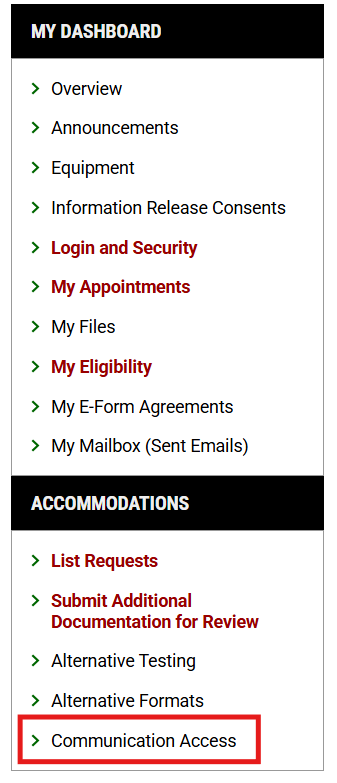
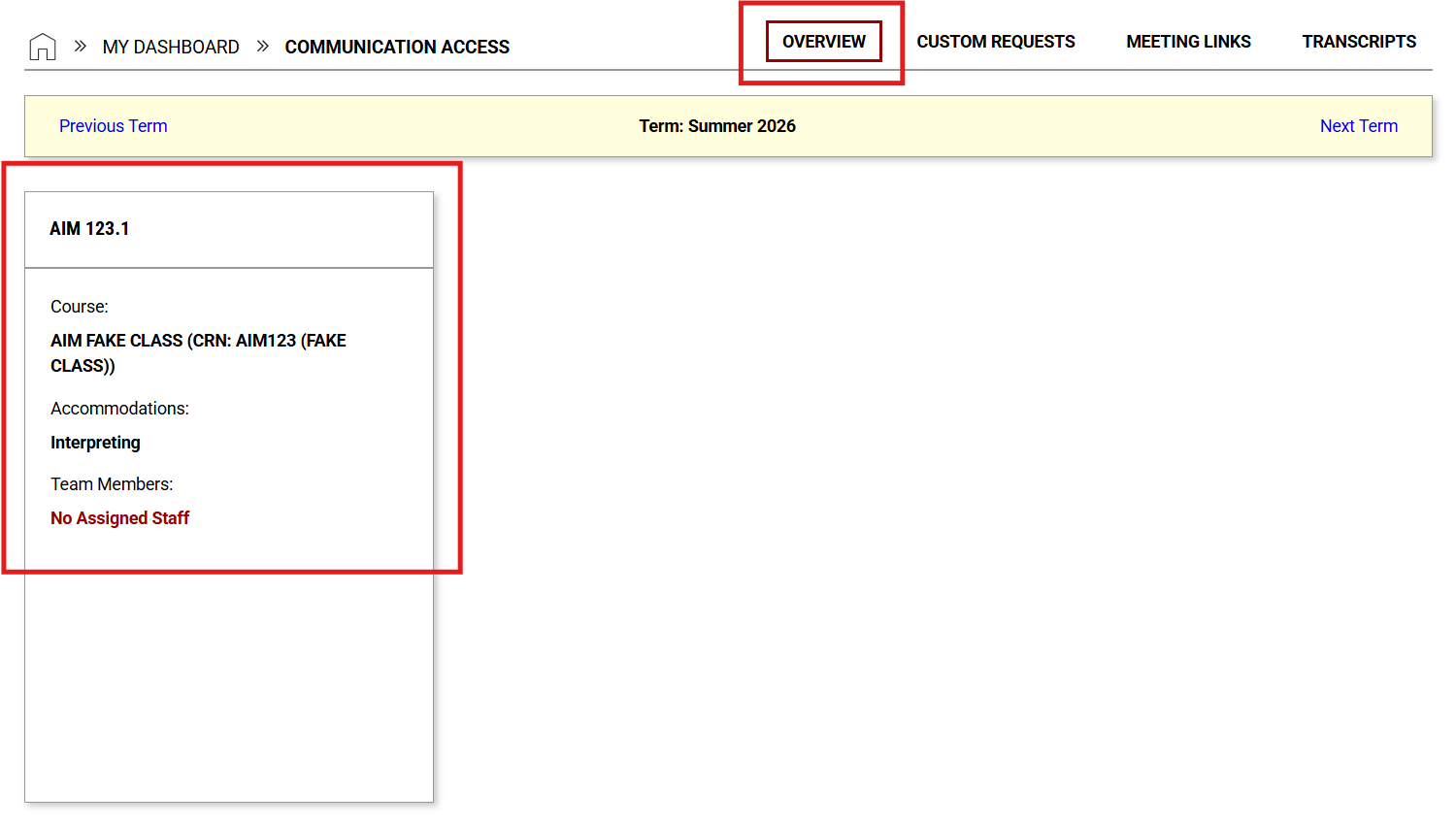
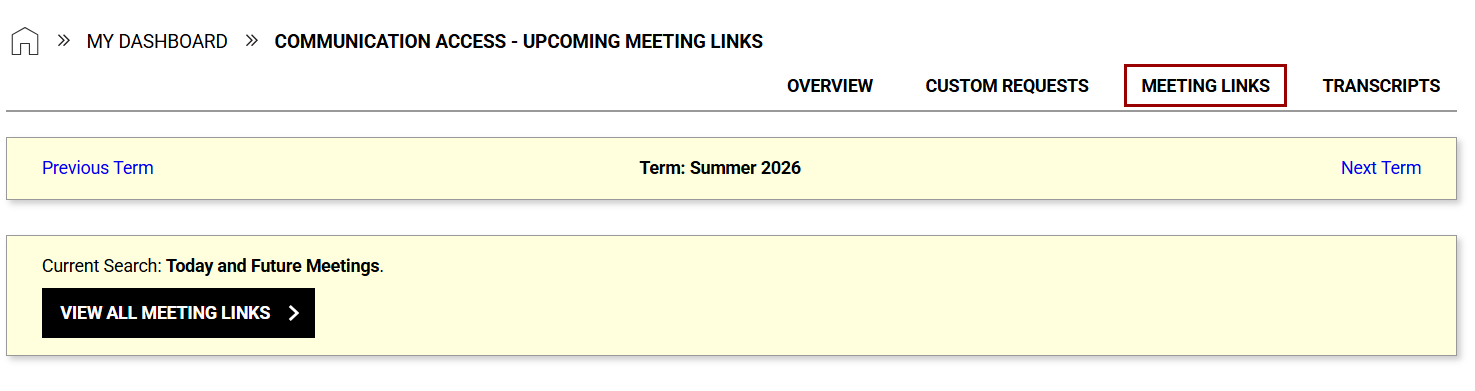
In the “Communication Access” module you will find four tabs on the top right corner of the page, listed “Overview”, “Custom Requests”, “Meeting Links”, and “Transcripts”.
The “Overview” tab will show you an overview of your courses and the approved accommodations that you are approved for.
The “Meeting Links” tab will show you your meeting links for today and future meetings.
The “Transcripts” tab will show you any transcripts that have been provided to you.

Submitting Requests for ASL Interpreting Services, CART Services and Media Captioning
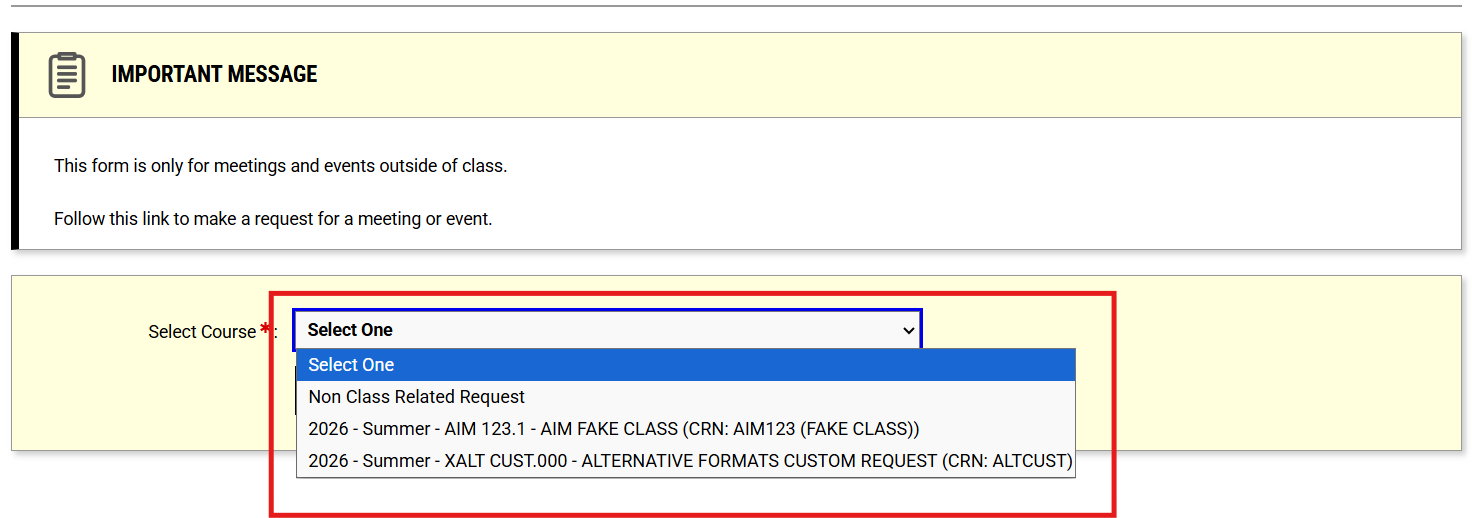
The “Custom Request” tab will allow you to create a custom request for your approved communication access service. A custom request is a request for meetings and events outside of class.
- On the “Custom Request” screen, follow the prompt to select the course you would like to make a request for, or select Non Class Related Content, then select ‘Continue to Add Custom Request’.
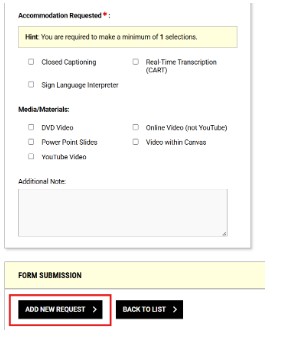
- The page will prompt you to enter the event information, speakers, start and end time of the event, location/meeting link, any additional information, accommodations requested (Closed Captioning, Real-Time Transcription (CART), or Sign Language Interpreter), as well as media materials. When finished entering details, select ‘Add New Request’.
Using Equipment Access Module to Track Checked-Out Technology and Equipment
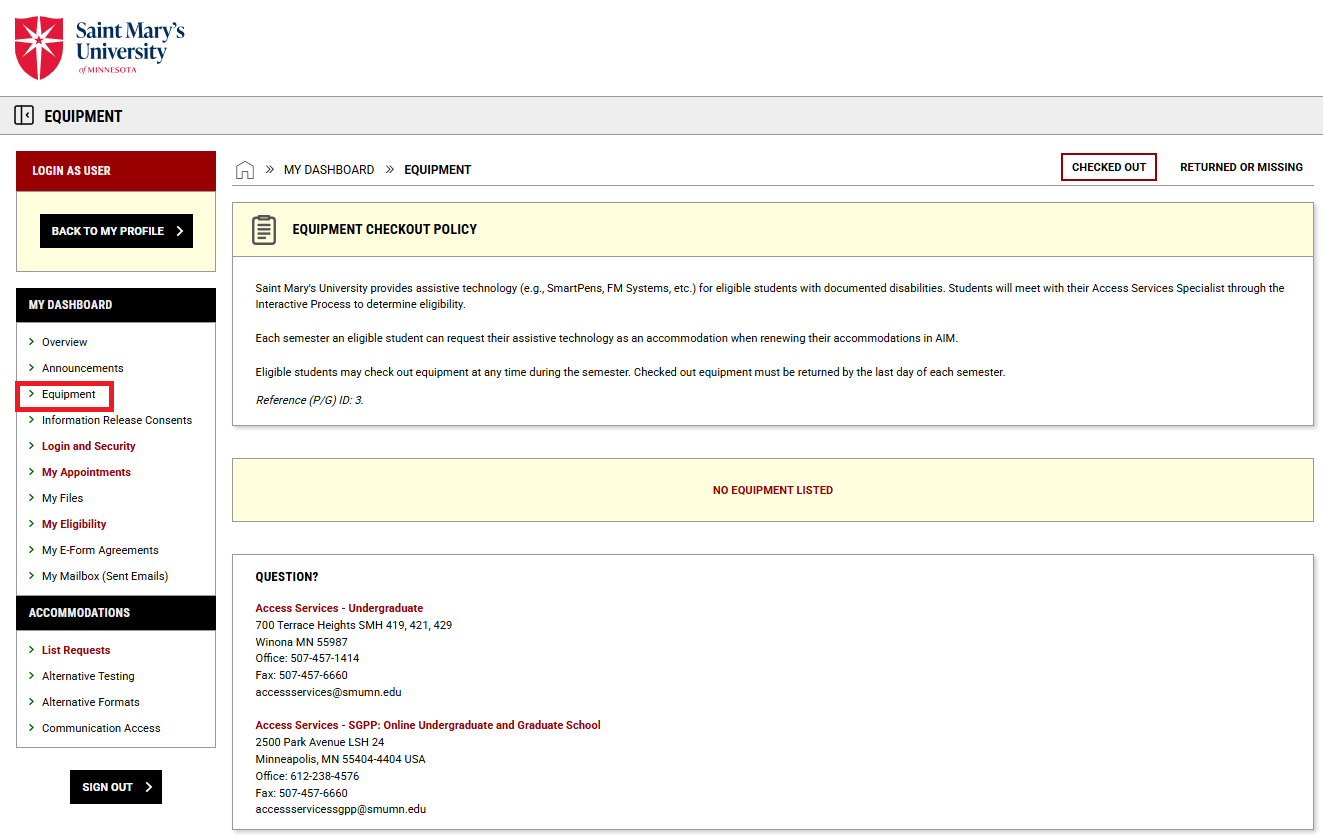
Students can track any assistive technology and accessible equipment they have checked out through Access Services using the “Equipment Access” module under “My Dashboard”.
Explanation of the Testing Agreement Form
Students will be asked to review and sign off on the Access Services Testing Center Agreement Forms once per year to schedule your exams. This is to ensure that you have received, reviewed, and understand the process and policies. Students will have access to the Testing Agreement Form in their AIM Student Portal.
How to Submit a New Exam Request
- Navigate to the AIM Student Portal.
- Under the tab labeled “Accommodations,” select, “Alternative Testing.”
- Select your course under “Schedule an Exam.”
- Select “Schedule an Exam.”
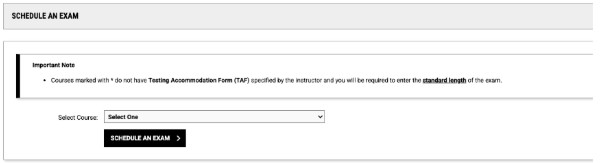
- This will bring you to the course information page, where you can select from the available exam dates or you can choose an exam date not listed.
- If you do not choose an available exam date, enter the exam information as directed on the page.
- Select “Add Exam Request” located at the bottom of the form.
- You will receive an email notification when your request has been approved by the Access Services Testing Center staff.
How to Cancel an Exam Request
- Navigate to the AIM Student Portal
- Under the tab labeled “Accommodations,” select, “Alternative Testing.”
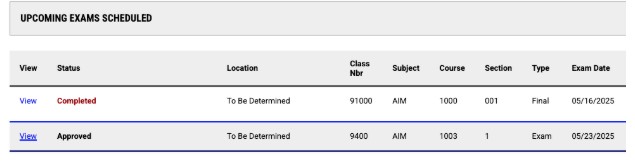
- Scroll down to “Upcoming Exams Scheduled.”
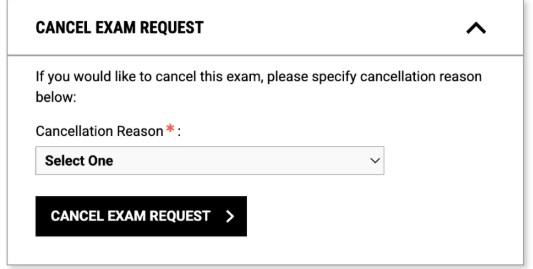
- Select “Cancel Exam Request.”
- In the drop-down menu, select your cancellation reason.
- Once the reason is selected, click “Cancel Exam Request.”
How to Reschedule an Exam
Exams may need to be rescheduled for a variety of reasons, including but not limited to the instructor changing the exam date, accidentally scheduling the wrong date initially, illness, experiencing a disability related flare-up, the weather, etc. All exam reschedules, regardless of the reason, still need to be approved by an instructor in advance and the instructor’s approval needs to be forwarded to accessservices@smumn.edu.
If you need assistance navigating the conversation with your instructor, please contact Access Services. The only times you do not need to forward instructor approval is if the instructor changed the date of the exam or if you accidentally scheduled the wrong exam date initially, but you still need to notify accessservices@smumn.edu. Our ability to approve reschedule requests will be contingent on our Access Services Testing Center capacity on any given day.
If an exam needs to be rescheduled you will need to update your request in AIM and notify accessservices@smumn.edu.
-
Open the AIM student portal then navigate to the Accommodations tab and select “Alternative Testing.”
-
Navigate to the “All Exam Request” at the top ribbon menu.
-
Select “View” for the specific exam request that needs to be rescheduled. This will allow you to make changes to the request for a different date or time.
-
Notify Access Services via email that you need to make a change at accessservices@smumn.edu.

How to Review Exam Requests
- Navigate to the AIM Student Portal.
- Under the tab labeled “Accommodations,” select, “Alternative Testing.”
- Scroll down to “Upcoming Exams Scheduled.”